Productivity apps are one of the most crowded categories on any app store, yet people keep looking for a better one. That tells you something: most tools are either too simple to be useful or too complex to stay with. Planning a productivity app well means finding the narrow path between those two failures.
Start with a specific person and moment
“Busy people” is not an audience. A freelance designer planning client work, a student juggling deadlines and a manager preparing for back-to-back meetings all need different things. Choose one primary user and describe the moment they reach for the app: on the train in the morning, at their desk after lunch, on Sunday evening before the week begins.
That moment tells you what the first screen must show and how much attention the user can spare.
Define the core loop
Every productivity app has a loop at its heart. For a task manager it is capture → organise → complete. For a focus timer it is choose task → focus → rest → review. Write your loop down in one line. If you cannot, the product concept is not clear yet.
Everything in the first release should support that loop. Features that do not — themes, integrations, collaboration — can wait until people are using the core consistently.
Design input for speed
Capture speed is the single most important quality in a productivity app. If adding a task takes longer than writing it on paper, people stop. Consider:
- A quick-add action available from every main screen
- Natural language parsing for dates and times, if it fits your audience
- Smart defaults so most fields are optional
- Widgets or shortcuts for capture outside the app
Choose views carefully
Lists, calendars, boards and timelines all have fans. Pick one primary view that matches your loop and make it excellent. A daily planner should open on today; a project tool might open on the current project. Additional views add complexity to design, development and testing.
Plan reminders as a feature, not an afterthought
Notifications can make a productivity app indispensable or annoying. Decide early what deserves a notification, how users control them and how the app behaves when they are ignored. A good rule: every notification should be something the user would have asked for.
Prototype before you build
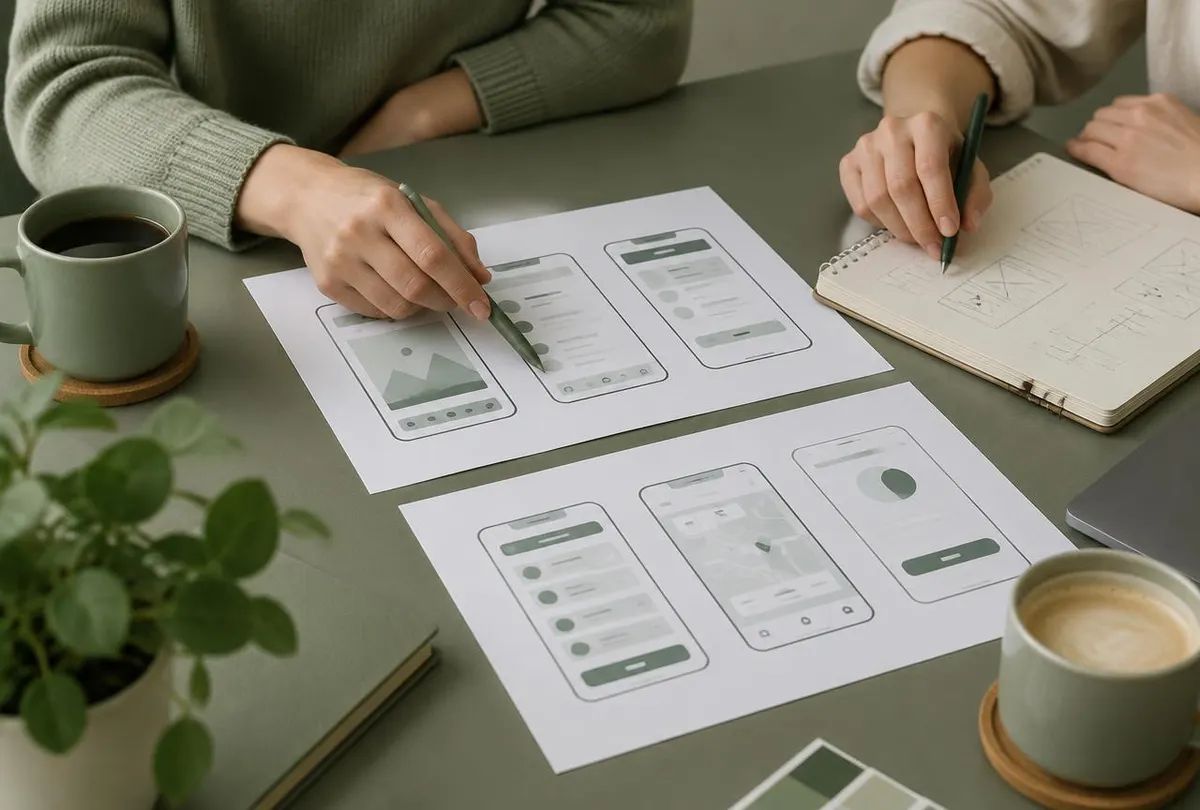
A clickable prototype of the core loop lets you test assumptions cheaply. Ask a few people from your target audience to add tasks, plan a day and complete items. Watch where they hesitate. Those pauses are your design priorities. Our development process builds this step in deliberately.
A first-release checklist
- One clearly defined user and usage moment
- A core loop written in one line
- Fast capture from anywhere in the app
- One primary view done well
- A considered notification strategy
- Empty states that teach the first action
Planning an app in this area? We help founders and businesses shape and build mobile products like these. Discuss your app idea.